How to Set Up Custom Meals
We don’t all eat in the same way each day. You might have a mid-morning snack, a post-workout meal, an afternoon coffee or a late-night snack. Trying to fit all of these into standard breakfast, lunch, dinner and snack meal categories can sometimes make food logging feel less reflective of how you actually eat.
fatsecret Premium members have access to Custom Meals, which allow you to create additional meal categories in your Diary that better match your personal eating habits.
Custom Meals give you greater flexibility when logging your food. By organizing your meals in a way that reflects your real routine, it becomes easier to see patterns in your eating habits and understand how your daily food intake is distributed throughout the day.
Here’s a guide showing you how to set up Custom Meals in the fatsecret app.
How to Add Custom Meals to Your Diary
Step 1: Open Custom Meals Settings
To set up Custom Meals, go to the Premium homepage (found in the app's bottom navigation) and tap ‘Set up your Custom Meals’.
Step 2: Enable and Name Your Custom Meals
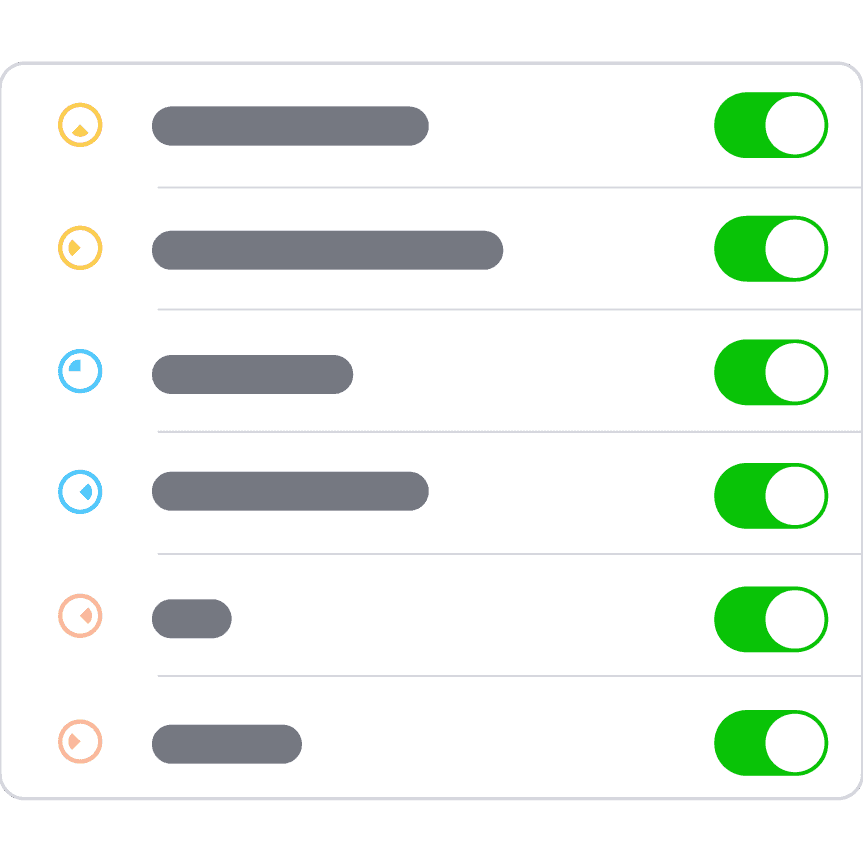
On the Custom Meals settings page, you will see additional meal slots that can be added to your Diary.
To enable a Custom Meal, turn on the toggle next to the meal slot you want to add.
You can also rename the meal to match how you prefer to organize your food. To do this, simply tap the meal name and type your preferred label.
Step 3: Save Your Custom Meals
Once you have enabled and renamed your Custom Meals, tap Done to save your changes.
Your new meal headings will now appear in your Diary page, alongside your standard meals.
You can begin logging food under these new meal categories right away.