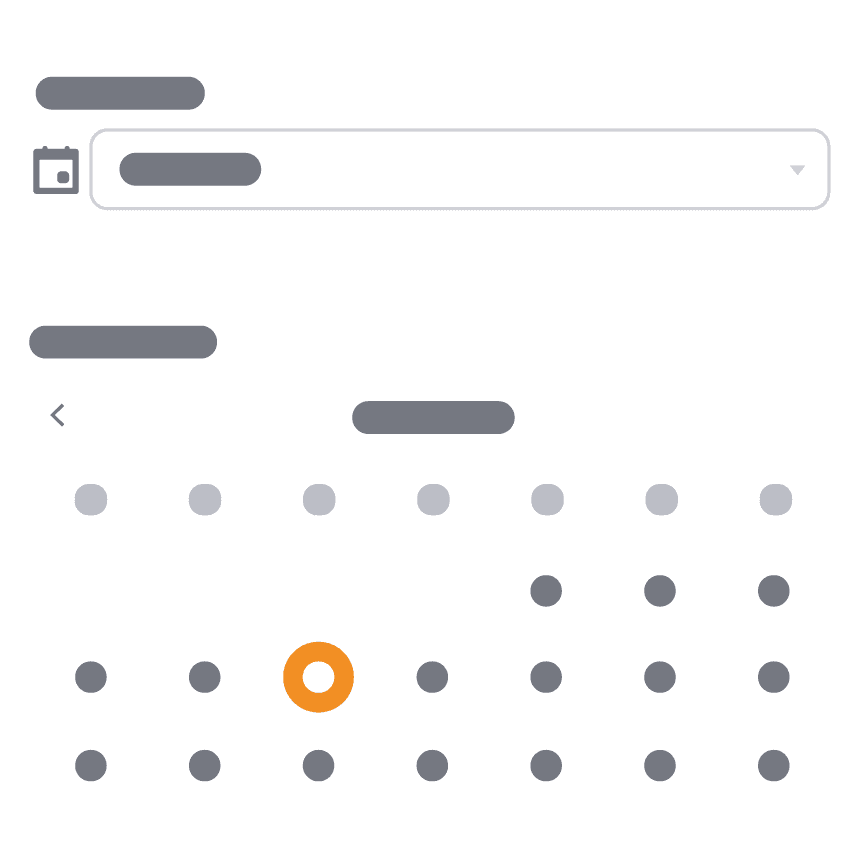
How to Use the Copy Food Tool
Logging your food regularly is one of the most effective ways to stay aware of your calorie intake. However, if you often eat the same meals or foods, logging them repeatedly can take time.
The Copy Food feature available to fatsecret Premium members helps speed up this process.
Instead of manually entering the same foods again, you can select foods from an existing meal and copy them to another meal, day, or multiple days in your Diary.
Below is a step-by-step guide on how to use the Copy Food feature.
How to Copy Food
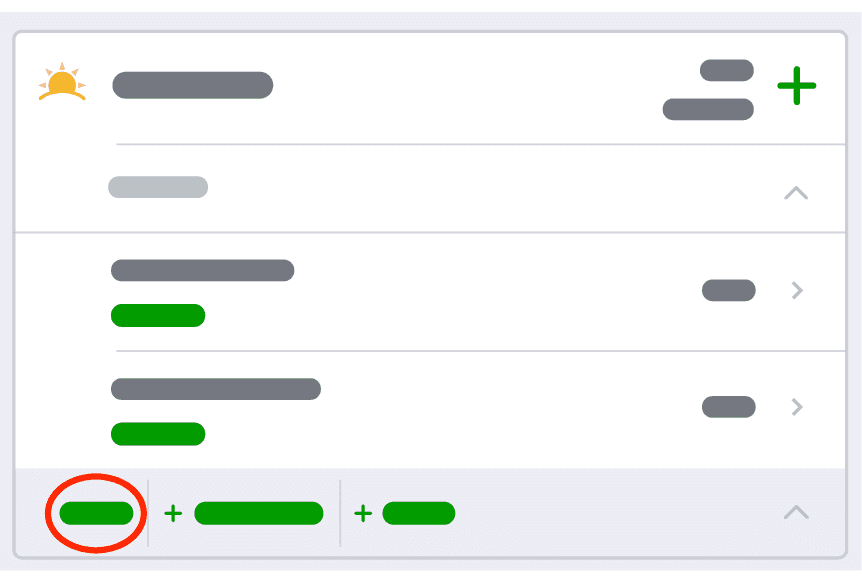
Step 1: Tap “Copy”
Open your Diary page and locate the meal that contains the foods you want to duplicate.
Tap Copy underneath that meal to begin the process.
Step 2: Select the Foods You Want to Copy
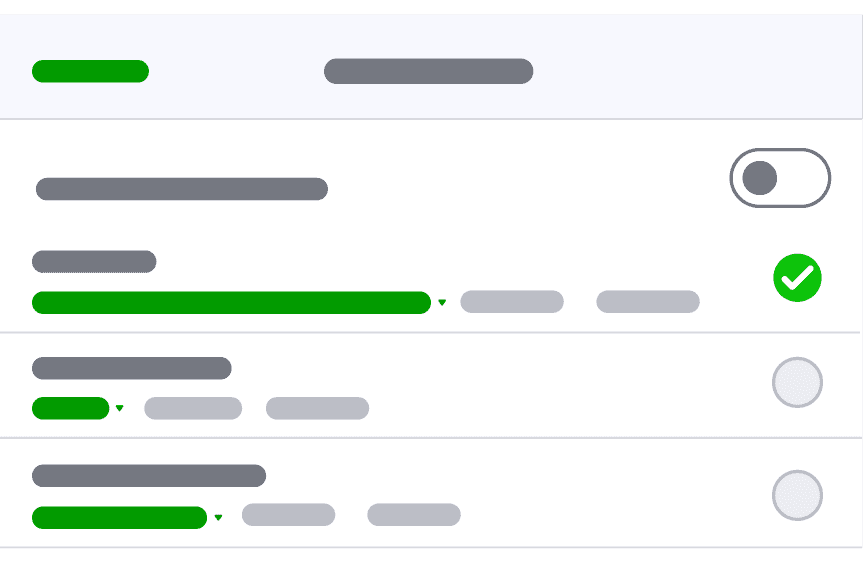
You will now see a list of the foods logged in that meal. Select the foods you want to copy, or toggle on “Select All Foods” if you want to copy the entire meal. Once you have selected the foods you want to copy, tap “Next”.
Step 3: Choose the Meal to Copy the Food To
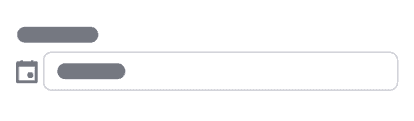
Choose which meal you would like to copy the food to by tapping ‘Select Meal’ at the top of the screen.
Step 4: Select Days
Select which days you would like the food to be copied to.
You can copy foods to:
- The current day
- Future days
- Multiple days at once
Press ‘Save’. Your food will then be copied over to the meal and/or days you selected.