

6. How to Use fatsecret Reports
You’re putting real effort into tracking your food, so we want to make sure you get the most out of that effort. Reports help turn what you log into insight, so you can better understand your eating patterns and how they support weight loss.
This guide walks you through how to use the Reports feature. It shows you which tabs to focus on, what to pay attention to, and how to use that information to support weight loss.
To get started, open your fatsecret Reports by tapping the Reports tab in the bottom navigation bar.

Understanding the Reports Tabs
On the Reports page, you’ll see three tabs at the top: Calories, Macros, and Nutrients. Each one shows your intake from a different angle. Below is how we recommend using each tab to get the most value from your food tracking.
Calories Report
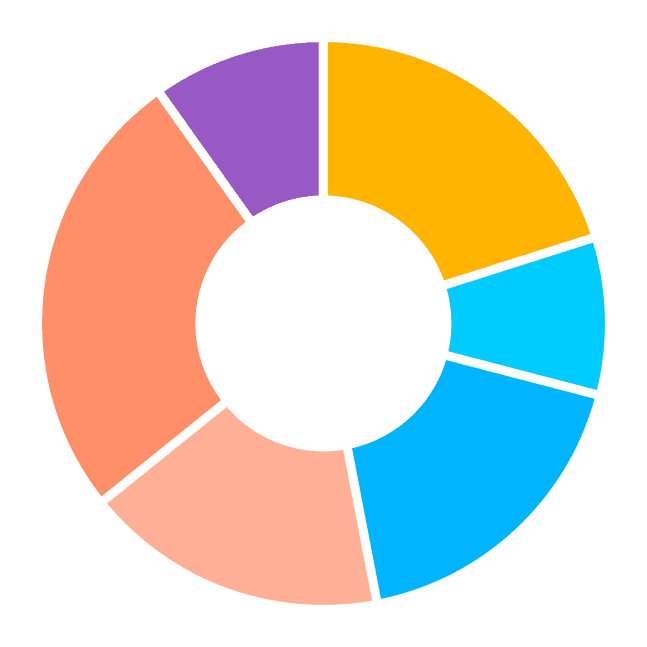
The Calories tab gives you an overview of how your calorie intake compares to your goal and how those calories are distributed across your meals. This view is designed to help you understand your overall intake and spot patterns that can influence weight loss.
When you open Reports, you’ll land on the Calories tab with the view set to This Week. One of the most useful things to look at here is your average daily calorie intake compared to your RDI. The average matters more than any single day. It’s very normal to have days where intake is higher than planned, but what really counts is how things balance out across the week.
As a general guide, if your average intake is within around 10% either side of your RDI, you’re likely on track, even if a few days are higher. This helps take the pressure off having “perfect” days and keeps the focus on consistency, which is what supports weight loss over time. Use this section as a regular check-in to see whether your overall intake is heading in the right direction.
As you scroll down, you’ll also see a breakdown of how your calories are spread across different meal types. This can help you understand where most of your calories are coming from during the day and whether certain meals tend to contribute more than expected. For many people, this view highlights simple opportunities to adjust meal structure or planning.
At the bottom of the page, you’ll find a list of the foods you’ve logged, ordered from highest to lowest calories. This can help you see which foods contribute the most to your daily intake and give context around where small changes might have the biggest impact.
Macronutrient Report
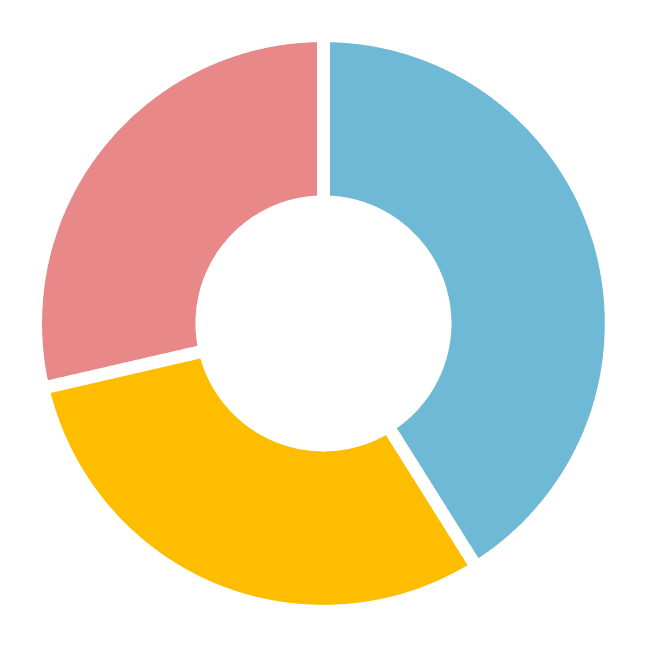
The macros report shows the percentage of calories you’re getting from fat, protein, and carbohydrates. Here, you can compare your actual intake against your macronutrient targets to see how closely your day or week aligns with your goals. These insights can help you spot imbalances in your macronutrient intake (such as too high in carbohydrates and too low in protein and fat) that may be influencing your hunger or energy.
If a macronutrient goes above your target, it will be highlighted in red. Over time, this can help you understand whether certain nutrients tend to run high or low and whether your current goals work for the way you eat.
Nutrients Report
The Nutrients report gives you a detailed breakdown of all the nutrients you can track in the app and shows how your intake compares to your set goals. You can tap on any nutrient to view it in more detail and see how it’s showing up across your day or week.
For example, if you select fiber, you’ll see a breakdown of how much fiber you’re getting at each meal, along with a list of the foods you logged that contributed to your fiber intake, ordered from highest to lowest. This makes it easier to understand where fiber is coming from in your diet and whether it’s spread across your meals.
You can use this same view for nutrients you may want to limit, such as sugar. Looking at the breakdown helps you see which foods are contributing most to your intake, so you can better understand patterns and make changes that support your weight loss.
This report is designed to help you build awareness around individual nutrients, and it’s most useful when you use it to understand where nutrients are coming from and how they fit into your overall intake.

How to Change the Date Range
At the top of the Reports page, you’ll see a dropdown that lets you change the time period you’re viewing. When you first open Reports, this is set to This Week by default. You can switch the view to Today, Yesterday, or Last Week, depending on what you want to check in on.
Once you’ve selected a time period, you can use the left and right arrows next to it to move between days or weeks. This makes it easy to compare different days or see how one week stacks up against another.
Your selected date range stays the same as you move between the Calories, Macros, and Nutrients tabs, so you’re always looking at the same period across Reports.

How to Update Your Nutrition Goals
You can update your nutrition goals at any time by tapping Goals in the top right corner of the Reports page. This is where you can adjust things as your needs change, or if you want your goals to better reflect your current routine.
Below is a guide to the different goal settings and when it makes sense to use each one.
Update Your Calorie Goal
Your calorie goal is your Recommended Daily Intake (RDI), which is calculated when you first sign up for fatsecret from details like your weight, activity level, and diet goal.
If any of this information has changed, the best option is to tap Calculate My RDI. This allows you to update your details and receive a recalculated calorie target that better reflects where you’re at now.
You can also manually edit your calorie goal, but we generally only recommend this if you’ve been given a specific target by a health professional or fitness trainer. For most people, recalculating your RDI is the safest and most accurate approach.
Update Your Macronutrient Goals
You can adjust your macronutrient goals in two ways: by setting a percentage split for carbohydrates, fat, and protein, or by switching to grams if you prefer more precise targets.
Using percentages keeps your overall calorie goal the same, which makes this option easier when you’re still getting familiar with tracking. If you choose to set macronutrients in grams instead, keep in mind that this will also change your calorie goal based on those values.
Set Daily Goals
The Goals page also lets you create different calorie and macronutrient goals for specific days of the week. This can be helpful if your routine isn’t the same every day. For example, you might want slightly different goals on busier workdays, training days, or weekends. Daily goals allow you to plan for these differences while still staying accountable overall.
This feature works best when your week has predictable patterns, and you want your goals to reflect real life, rather than expecting every day to look the same.
Set Other Nutrient Goals
By default, fatsecret sets goals for calories and macronutrients only. However, you can also set custom goals for other nutrients you’re tracking.
In the Other Nutrient Goals section, you can add targets for things like fiber, sugar, sodium, and different types of fat. This is useful if you want to focus on a specific nutrient for health or weight loss reasons.
After making any changes, tap Save in the top right corner. Your updated goals will then be reflected across the Reports page, so you can track your intake against the new goals you have set.
By checking in on your calories, macronutrients, and key nutrients, you can get quick, useful context on how your day is shaping up, and also start to see patterns that aren’t always obvious day to day. Over time, this makes it easier to understand where small adjustments could make weight loss feel more manageable.
Use Reports as a regular check-in, whether you’re reviewing a single day or a full week. Building awareness day to day is what leads to better decisions over time and supports steady, sustainable weight loss.